
TradingView multiple charts: how to see the big picture and the entry side by side
Seeing the daily and the 1-hour chart side by side makes the bigger picture hard to forget. Here's how to set up a multi-chart layout on TradingView, and what to do if your plan allows only one chart.
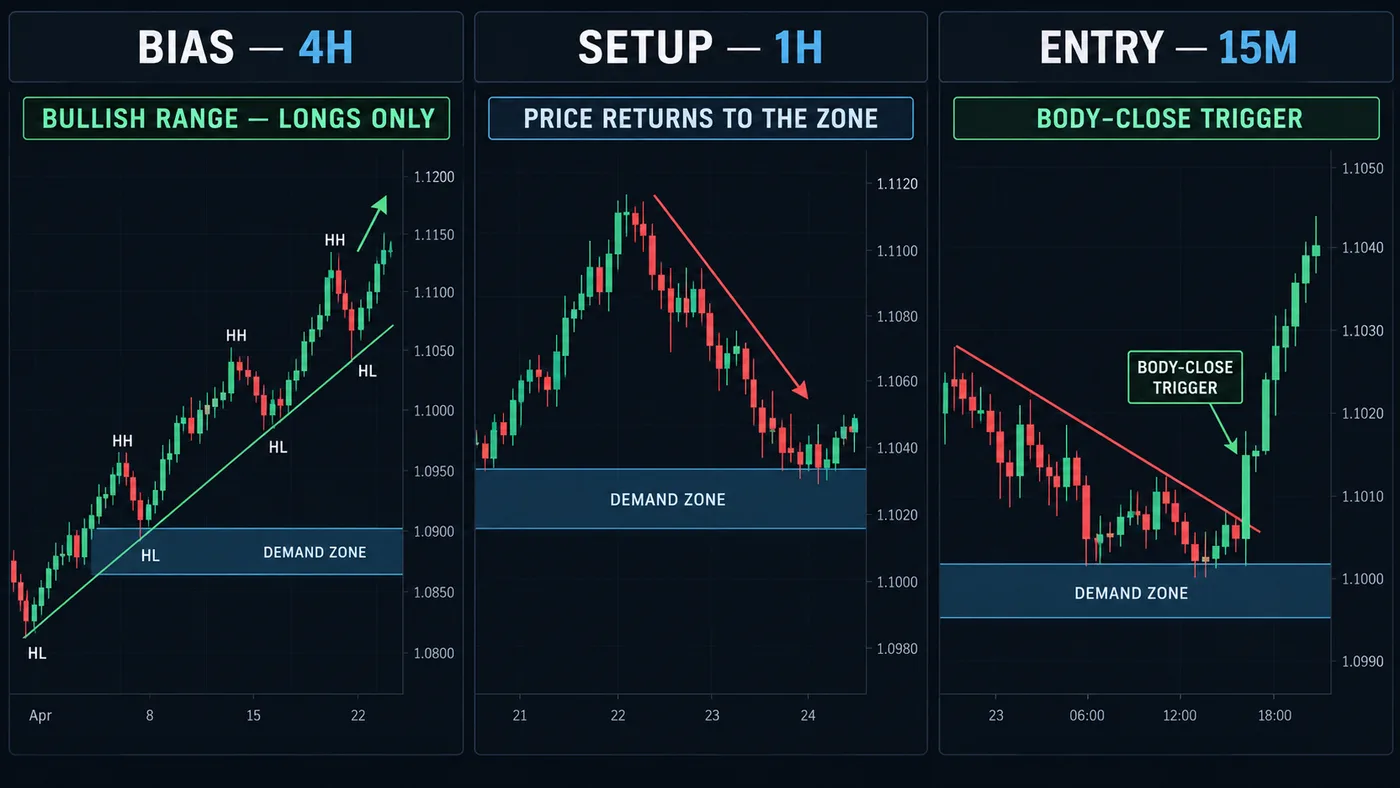
Why look at more than one chart?
Our method checks the bigger chart first, then zooms in. On one screen, that means flipping back and forth between timeframes.
Flipping works. But each flip is a chance to forget what the bigger chart said. With 2 charts side by side, the big picture stays in view the whole time.
It's the same idea as multiple timeframe analysis, just laid out on one screen.
Find the layout button
On a computer, look in the top toolbar for an icon that looks like a square split into boxes. It's often called "Select layout" or similar. Click it.
A grid of options opens: 1 chart, 2 charts side by side, 2 stacked, 3, 4, and more.
On the phone app, multi-chart layouts are limited or not available, because the screen is small. Many people do their multi-chart setup on a computer and use the phone for quick checks.
How many charts can you have?
The number of charts per layout depends on your TradingView plan. On some plans, only 1 chart per layout is allowed. Plans change, so check TradingView's pricing page for current limits.
If you can only use 1 chart, skip to "Working with one chart" below. You can still do everything in this guide, just with a few more clicks.
Set up a 2-chart view
Two charts is the sweet spot for most beginners. It's enough to see the big picture and the entry without crowding the screen.
- Click the layout button and pick 2 charts side by side.
- Click the left chart to select it. Set its timeframe to the bigger one, like 1D (daily).
- Click the right chart. Set it to the smaller one, like 1h.
- Make sure both show the same symbol (see syncing below).
Now the left chart shows the trend. The right chart shows where you'd time an entry.
| Your style | Left (bigger) | Right (smaller) |
|---|---|---|
| Swing trading | Weekly | Daily |
| Day trading | Daily or 4h | 15m or 5m |
| Slower day trading | 4h | 1h |
Keep the two charts reasonably close. A daily paired with a 1-minute is too far apart to compare easily. See best timeframe for day trading.
Sync the charts
Syncing means a change in one chart happens in the others too. Look for sync options in the layout menu, usually as checkboxes.
- Symbol: change the ticker on one chart, and all charts switch. Turn this on for a timeframe layout.
- Interval (timeframe): change the timeframe on one, and all change. Turn this off here, or both charts will show the same timeframe.
- Crosshair: your cursor shows on every chart at the same time and price. Turn this on. It helps line up a candle on the small chart with its place on the big one.
- Time: scroll one chart, and the others scroll to the same date. Handy for replay and review.
- Drawings: a line on one chart shows on the others. Many people turn this on, so a daily zone also appears on the 1-hour.
Symbol on, timeframe off. That one setting pair turns a multi-chart layout into a multi-timeframe tool. Click a name in your watchlist and both charts jump to it, each on its own timeframe.
Link the watchlist
With symbol sync on, clicking a name in your watchlist changes every chart in the layout at once. Some versions let you link only certain charts to the watchlist, using a small color-link icon on each chart. Look for it near the symbol name if you want finer control.
Save the layout
Once it looks right, save it so it's ready every day. Look for a save option or the layout name in the top-right of the screen, then choose to save or rename it.
Good names say what it's for: "Daily + 1h" or "Swing - weekly/daily". How many saved layouts you can keep depends on your plan.
Working with one chart
If your plan allows only one chart per layout, there are simple ways to get most of the benefit.
- Flip with a routine. Always look at the bigger chart first. Write one word on a sticky note: up, down or sideways. Then switch to the smaller chart. The note stays in view even when the chart changes.
- Use favorites. Star your 2 timeframes so they appear as quick buttons in the top toolbar. One click switches between them.
- Use 2 browser tabs. Open TradingView in two tabs or windows, each on a different timeframe, and place them side by side. Check whether your plan limits how many devices or tabs can be open at once.
- Keep big levels visible. Draw your zones on the daily chart. They'll show on smaller timeframes too, so the big picture comes with you.
The goal isn't more charts. It's not forgetting the big picture. A sticky note with "daily: up" does that job for free.
Don't overdo it
It's tempting to set up 8 charts with every timeframe from monthly to 1-minute. It looks impressive. It's very hard to use.
More charts means more places to find a reason to trade, and more chances to disagree with yourself. Two charts give a clear answer. Three is plenty for most beginners: for example, weekly, daily and 1-hour for swing trading.
A simple multi-chart routine
- Open your saved "Daily + 1h" layout.
- Click the first name in your watchlist.
- On the left (daily): mark the trend and the nearest zone.
- On the right (1h): check where price is compared to that zone.
- If price is near the zone in the direction of the trend, set an alert. If not, move to the next name.
Our free StructureX chart tool marks the last places price turned around on each chart, which makes step 3 quicker. Search "StructureX" in TradingView's Indicators.
Questions
How do I show multiple charts on TradingView?
Click the layout button in the top toolbar (it looks like a split square) and choose how many charts you want. Then set each chart's symbol and timeframe.
Can I use multiple charts on the free TradingView plan?
Chart limits depend on your plan, and some plans allow only one chart per layout. Check TradingView's pricing page for the current details.
How do I sync charts on TradingView?
In the layout menu, tick the sync options you want, such as symbol, crosshair, time and drawings. For a multi-timeframe view, sync the symbol but not the interval.
What timeframes should I put side by side?
Pair a bigger chart for direction with a smaller one for timing, not too far apart, like daily with 1h, 4h with 15m, or weekly with daily for swing trading.
Want the next step? We'll walk you through it.
Four free lessons by email, one every few days — each with a 10-minute exercise on a real chart.
Send Me the Free Lessons 4 short emails · No spam · Unsubscribe anytimeOr see the whole method, step by step:
See What’s Inside the Course Try everything free first. Decide when you're ready. · Open the free chart tool (works in the TradingView phone app)One chart idea a day, in plain English. Follow along: