
TradingView drawing tools: the 6 worth learning first (and how to keep charts clean)
TradingView has dozens of drawing tools. You need about 6. Here's what each one is for, how to use it, and how to keep your chart clear enough to read.
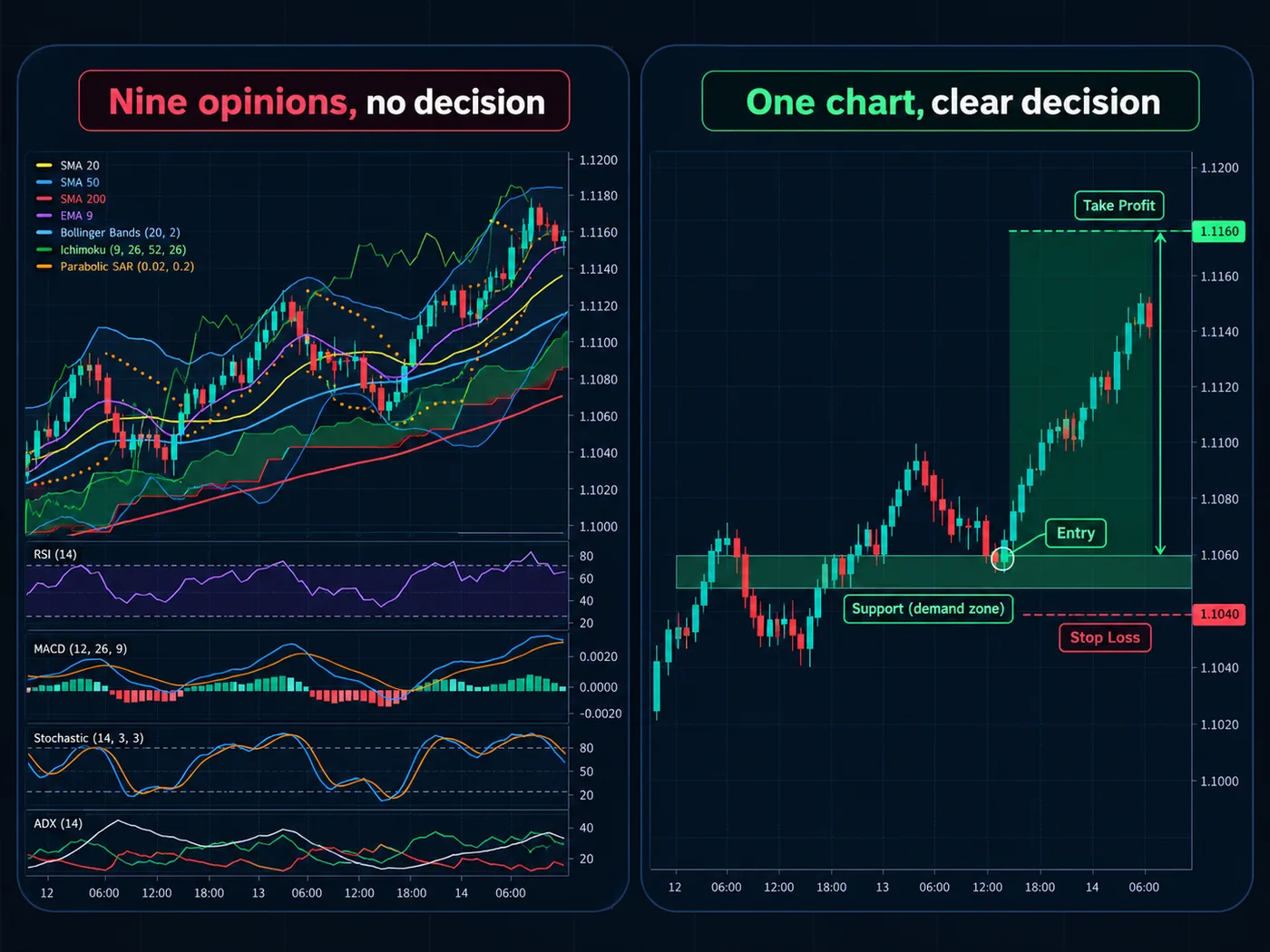
Where the drawing tools live
On a computer, the drawing tools sit in a toolbar down the left side of the chart. Each icon is a group. Click the small arrow next to an icon, or press and hold it, to see the whole group.
On the phone app, look for a pencil or brush icon in the chart toolbar. It opens the same tools in a list.
Names and positions change from time to time. If a tool isn't where this guide says, look for it in the nearest group, or use the search option inside the drawing menu if your version has one.
Tool 1: Horizontal line
A flat line across the chart at one price. It's the fastest way to mark a level where price turned around before.
How: pick it from the lines group, then click once on the chart at the price you want.
Use it for: quick levels, round numbers, yesterday's high or low.
A cousin, the horizontal ray, starts at a point and runs only to the right. It keeps the left side of your chart clear.
Tool 2: Rectangle (for zones)
Price rarely turns at one exact number. It turns in a small area. A rectangle shows that area better than a line.
How:
- Pick the rectangle from the shapes group.
- Click at one corner of the zone, then at the opposite corner.
- Drag the right edge out so the box reaches into the future.
- Pick a soft color, with some see-through fill.
Use it for: the zones where price turned around at least twice. See support and resistance.
Turn on "extend right". In the rectangle's settings, look for an option to extend it to the right. The zone then stays on screen as new candles print, so you'll see when price comes back.
Tool 3: Trendline
A sloped line that connects 2 or more turning points.
How: pick it from the lines group, click on the first turning point, then on the second.
Use it for: showing a trend's angle. In an uptrend, connect the higher lows. In a downtrend, connect the lower highs.
Trendlines are easy to bend to fit what you want to see. Use real turning points, not wicks you picked to make a line look neat. Our trendline guide has the full steps.
Tool 4: Long and short position tool
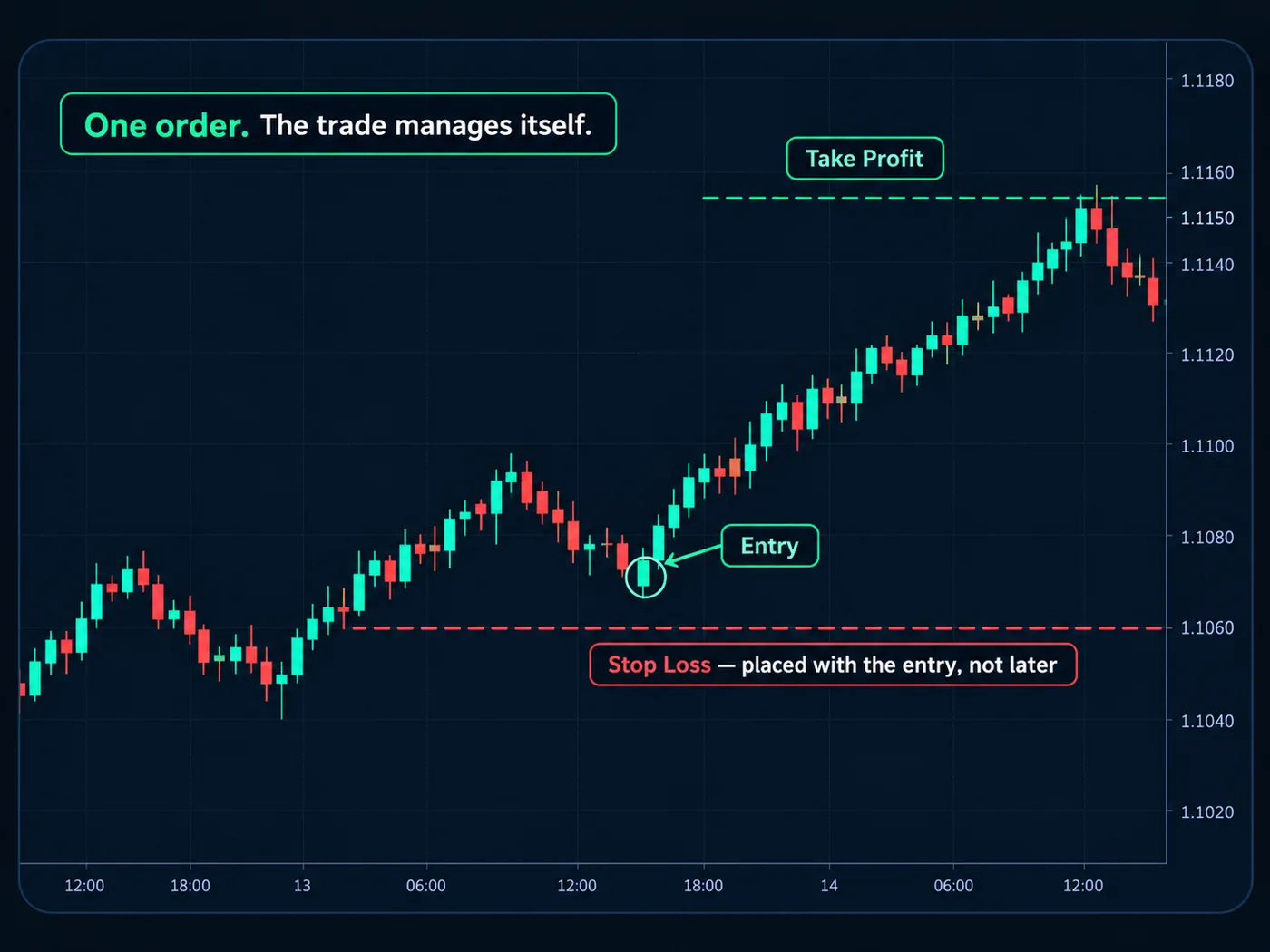
This one is a planning tool, and it's very useful. It draws your entry, stop and target as colored boxes and shows the Risk-reward ratio.
How:
- Look for it in the measuring or forecasting group. It's often called "Long position" and "Short position".
- Click at your entry price.
- Drag the red box edge to your stop, and the green box edge to your target.
- Read the numbers it shows: the distance to stop, the distance to target, and the ratio.
Many versions let you enter an account size and risk so the tool also shows a size. Double-check it with our position size calculator.
Use it for: planning every trade before you enter, and on replay practice. See risk-reward ratio.
Tool 5: Text and notes
A short label on the chart. Find it in the text or annotation group.
Use it for:
- naming a level: "daily turn", "weekly zone"
- noting why you're watching: "waiting for a body close above"
- marking news: "CPI 8:30"
Keep notes to 2 or 3 words. Long paragraphs on a chart are hard to read later.
Tool 6: Fibonacci retracement (optional)
This draws a set of lines between a low and a high at certain percentages. Some traders use it to guess where a pullback might pause. If you use it, keep it as a second opinion, not the main reason for a trade. See Fibonacci retracement.
Many beginners do fine without it. Start with the first 5.
Magnet mode
When you draw near a candle, magnet mode snaps your click to the candle's open, high, low or close. It helps lines land exactly on the turning point.
Look for a magnet icon in the left toolbar. There may be a weak and a strong setting. Try it on and off to see which you like.
5 tricks for a clean chart
- Pick favorites. Look for a star next to each tool. Starred tools can show up in a small floating bar, so your 6 tools are one click away.
- Use a color code. For example, green for floors, red for ceilings, grey for older levels. Keep it the same on every chart.
- Lock finished drawings. A lock option stops you from moving them by accident.
- Hide, don't delete. There's usually a way to hide all drawings at once. Hide them to see the plain candles, then bring them back.
- Clean up weekly. Delete old levels price has moved far away from.
3 or 4 zones per chart is plenty. If every price has a line on it, none of them mean anything. Fewer drawings make the important ones stand out.
Drawings on different timeframes
By default, a drawing on the daily chart also shows on the 1-hour chart. That's usually what you want. Big levels matter on small charts too.
In a drawing's settings, look for a visibility tab. You can choose which timeframes it shows on. Some traders show weekly zones everywhere but keep small 5-minute lines only on small charts. See multiple timeframe analysis.
Where to find all your drawings
Look for an object tree or a list of objects, often in the right-side bar. It lists every drawing and indicator on the chart. You can rename, hide, lock or delete them from there. It's the fastest way to tidy a busy chart.
Drawings and alerts
You can attach an alert to many drawings, like a horizontal ray or trendline. Click the drawing and look for an alarm clock in the small toolbar above it. Then TradingView tells you when price reaches your line. See TradingView alerts.
Try it today
- Open a daily chart. Star the 6 tools above.
- Box the 2 zones where price turned around most clearly. Extend them right.
- Use the long or short position tool to plan one example trade, with the stop at a real turning point.
- Lock the drawings, then hide and show them once to learn the button.
Questions
Where are the drawing tools on TradingView?
On a computer they're in the toolbar down the left side of the chart. On the phone app, look for a pencil or brush icon in the chart toolbar.
How do I draw a support and resistance zone on TradingView?
Use the rectangle tool to box the small area where price turned around before, then extend it to the right so it stays visible as new candles form.
What is the long position tool on TradingView?
It's a planning tool that shows your entry, stop and target as boxes and works out the risk-reward ratio, so you can see a trade's shape before you enter.
How do I stop my drawings from moving?
Select the drawing and look for a lock option. Locked drawings can't be moved by accident.
Want the next step? We'll walk you through it.
Four free lessons by email, one every few days — each with a 10-minute exercise on a real chart.
Send Me the Free Lessons 4 short emails · No spam · Unsubscribe anytimeOr see the whole method, step by step:
See What’s Inside the Course Try everything free first. Decide when you're ready. · Open the free chart tool (works in the TradingView phone app)One chart idea a day, in plain English. Follow along: