
How to add an indicator on TradingView, on your phone or computer
Adding an indicator takes about 10 seconds once you know where the button is. Here's where it is, on the phone app and on a computer.
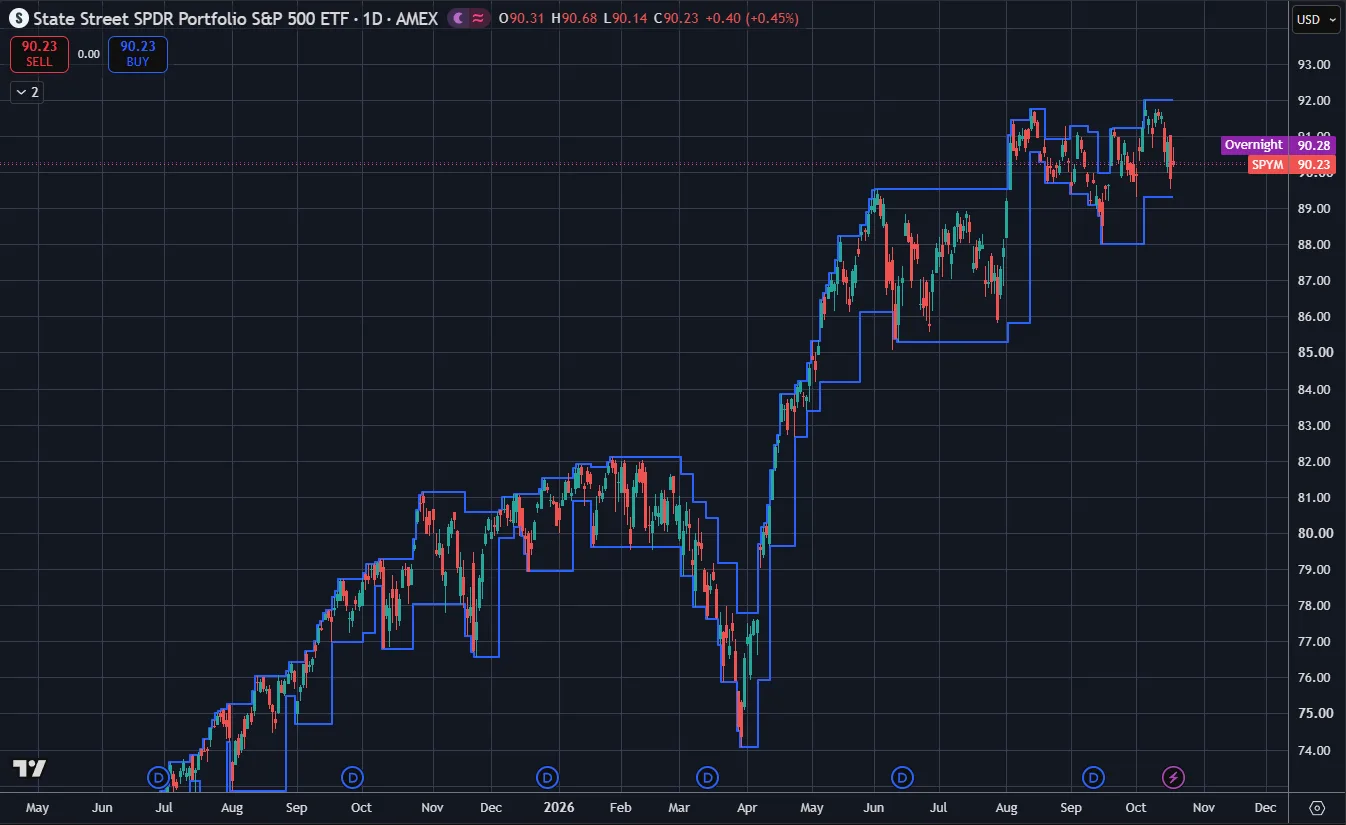
What an indicator is
An indicator is a small program that draws extra information on your chart. Some draw lines, some draw boxes or labels, some show a panel under the chart.
TradingView has built-in indicators, and anyone can publish their own. Published ones are called community scripts, and you add them the same way.
The example we'll use
We'll add our free StructureX chart tool. It marks the last places price turned around — the turning points — so you can see the trend and your levels without drawing them all by hand. It works on the computer and in the TradingView phone app.
You can also open its page directly: StructureX on TradingView.
On a computer
- Open a chart. Go to tradingview.com, sign in, and open any chart.
- Click Indicators. It's in the toolbar at the top of the chart (it often shows an "fx" symbol next to the word).
- Search. In the search box, type StructureX.
- Pick it from the results. Community scripts show up in the search results alongside built-in ones.
- Click it once. It's added to your chart. Close the search window.
That's it. The indicator's name now shows in the top-left corner of the chart.
On the phone app
- Open a chart in the TradingView app.
- Tap the indicators button. It's in the chart's toolbar (look for "fx" or "Indicators"). On some screens you may need to tap the chart first to show the toolbar.
- Search for StructureX.
- Tap it to add it to the chart.
- Go back to the chart.
App layouts change from time to time. If a button has moved, look for "Indicators" in the chart's menus — it's always there somewhere.
Make it a favorite. In the Indicators search window, published scripts can be starred. Favorited indicators get their own list, so next time you can add it in one tap instead of searching.
Using favorites
Favorites are the fastest way back to tools you use often.
- Open Indicators.
- Find the indicator in the search results.
- Click or tap the star next to its name.
- Next time, open the Favorites list in the Indicators window and add it from there.
Favorites sync between your computer and phone, because they're saved to your account.
Change an indicator's settings
Most indicators have settings you can change, like colors or how sensitive they are.
- On a computer: hover over the indicator's name in the top-left of the chart and click the gear (settings) icon. Or double-click the indicator on the chart.
- On the phone: tap the indicator's name on the chart, then open its settings.
Settings usually have two tabs that matter: Inputs (how it works) and Style (how it looks). Change one thing at a time, so you can see what each one does.
Hide or remove an indicator
- Hide: click or tap the eye icon next to its name. It stays on the chart but goes invisible.
- Remove: use the delete (trash) icon or the "Remove" option next to its name.
Hiding is handy when you want a plain chart for a moment.
How many indicators should you use?
Fewer than you think. A chart covered in lines makes everything look important, and then nothing is. Many traders use plain candles, a few zones, and one tool they understand well.
The free TradingView plan also limits how many indicators you can have on one chart at a time. The exact number depends on the plan and can change, so check TradingView's pricing page if you hit the limit.
Save your layout
On a computer, TradingView saves your chart layout to your account, so your indicators and drawings are there next time. If you change things a lot, use the layout menu (top right) to save a named layout.
Indicators don't predict the future
No indicator knows what price will do next. A good one makes the chart easier to read: it shows what already happened, clearly. You still decide what to do, and you still set a stop on every trade. The thinking behind turning points is in higher highs and higher lows.
Want to edit an indicator's code?
Published indicators are often locked, so you can use them but not see the code. Indicators you write yourself, or ones shared with their code open, can be edited in the Pine Editor — which needs a computer, because the phone app has no Pine Editor. See Pine Script for beginners.
Try it today
- Add StructureX to a daily chart of one market you watch.
- Star it as a favorite.
- Open the same chart on your phone and check that it's there.
- Then practice reading it with bar replay.
Questions
Why can't I find an indicator in TradingView search?
Check the spelling and make sure you're searching in the Indicators window, not the symbol search. Community scripts appear in the same results as built-in ones.
Can I add indicators on the TradingView mobile app?
Yes. Open a chart, tap the indicators button in the chart toolbar, search and tap to add. Favorites you starred on a computer show up on the phone too.
How do I add my favorite indicators on TradingView?
Star the indicator in the Indicators window. Next time, open your Favorites list there and add it in one tap.
Are TradingView indicators free?
Built-in indicators are free, and many community scripts are free too, including our StructureX chart tool. Some authors offer invite-only scripts, which need their permission.
Want the next step? We'll walk you through it.
Four free lessons by email, one every few days — each with a 10-minute exercise on a real chart.
Send Me the Free Lessons 4 short emails · No spam · Unsubscribe anytimeOr see the whole method, step by step:
See What’s Inside the Course Try everything free first. Decide when you're ready. · Open the free chart tool (works in the TradingView phone app)One chart idea a day, in plain English. Follow along: